
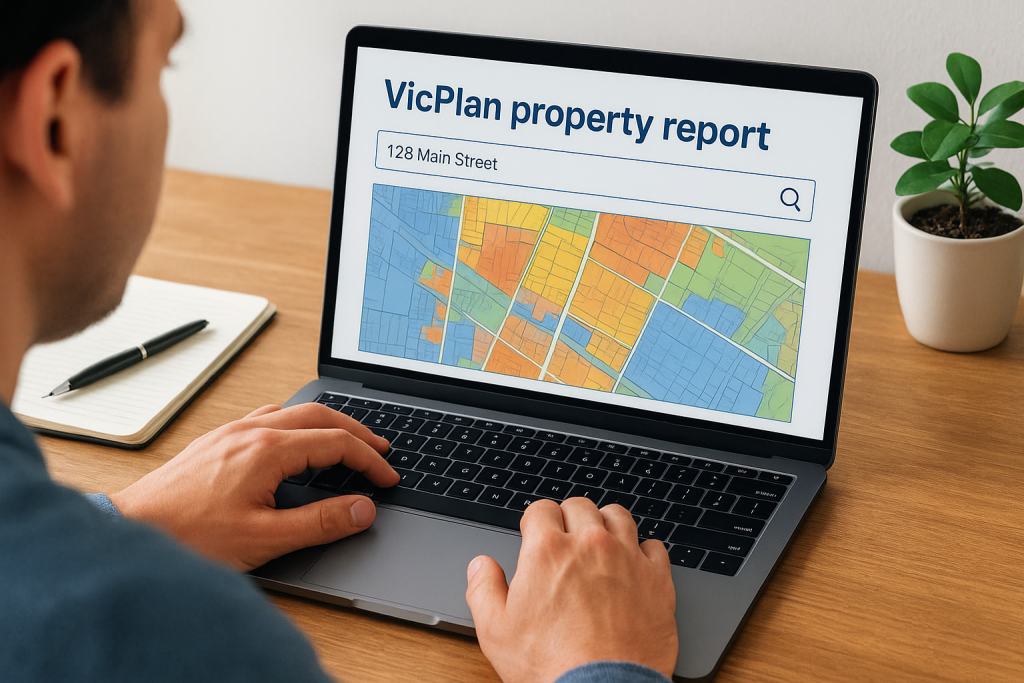
VicPlan Property Report: How To Generate One For Any Address
Before you knock down a wall, add a second storey, or plan a dual occupancy build, you need to know what your land actually allows. That’s where the VicPlan property report comes in. It’s a free tool from the Victorian Government that tells you the planning zones, overlays, and scheme provisions that apply to any address in Victoria, and it takes about two minutes to generate one. At Transformer Homes, we walk our Melbourne clients through this step early in every project. Whether you’re planning a custom home build in Thomastown or a renovation in Northcote, understanding your property’s planning controls is the starting point. It shapes what you can build, how high you can go, and whether you’ll need a planning permit before construction begins. This guide shows you exactly how to access VicPlan, generate your property report, and make sense of what’s in it. We’ll also cover what to look out for and when to get professional advice before moving forward with your build. What a VicPlan property report shows A VicPlan property report pulls together the planning information that applies to a specific land parcel in Victoria. It draws directly from the relevant local planning scheme and gives you a snapshot of the legal controls that govern what can and can’t be built on that site. You don’t need an account or any technical knowledge to generate one. Planning zones Your property sits within a specific zone, and that zone determines the primary land use permitted on your lot. Residential zones, for instance, come in several types: General Residential Zone (GRZ): Standard suburban residential land, typically allowing single dwellings, dual occupancy, and small multi-unit developments subject to conditions. Neighbourhood Residential Zone (NRZ): More restrictive, often limiting dwelling numbers and overall density. Residential Growth Zone (RGZ): Encourages higher density development, including townhouses and apartments. Knowing your zone upfront tells you whether your build concept is even worth pursuing before you spend money on design drawings. Overlays Overlays sit on top of zones and add extra layers of control to your property. They can restrict design, materials, or the extent of development. Common overlays include: Heritage Overlay (HO): Applies to properties or precincts with cultural heritage significance. Vegetation Protection Overlay (VPO): Controls tree removal and vegetation clearing. Design and Development Overlay (DDO): Sets specific requirements around building height or setbacks. If your property carries a Heritage Overlay, almost any external change will require a planning permit, even something as minor as painting the fence. Schedules and scheme provisions Each zone and overlay comes with a schedule that adds further detail specific to your local council area. These schedules set out things like minimum lot sizes, garden area requirements, and maximum building heights. The report links you directly to the relevant schedule so you can read the exact provisions that apply to your land. Step 1. Open VicPlan and search the address VicPlan is hosted on the official Victorian Government planning website. Open your browser and go to planning.vic.gov.au, then select VicPlan from the tools menu. The platform is free to use and runs in any modern browser, so you don’t need to download anything or create an account to generate a VicPlan property report. Entering your address Once the map loads, type your full street address into the search bar at the top left of the screen. Include the suburb and postcode to avoid pulling up multiple results. For example, entering "45 Smith Street, Thornbury 3071" will return a precise match rather than a list of partial results spread across different councils. Always confirm the pin drops on the correct parcel before proceeding, especially on corner lots or properties with multiple frontages. If the address doesn’t return a result, try entering the lot number and title reference instead. You can find this information on your Certificate of Title, which your conveyancer or the Land Use Victoria portal can supply. Once the correct parcel is highlighted on the map, you’re ready to move to step 2. Step 2. Generate the report and confirm the site With your property selected on the map, click the "Planning Property Report" button in the left-hand panel. VicPlan will prompt you to confirm the address and parcel before generating the document. Take a moment here rather than skipping straight to the download. Confirming the correct parcel Before you download anything, check the parcel boundary highlighted on the map matches the actual block you’re assessing. This step matters most on corner allotments, subdivided lots, and properties with irregular boundaries, where the pin can sometimes land on the wrong title. Look for three things in the confirmation panel: If you’re assessing a recently subdivided lot, the parcel may not yet reflect the updated title, so cross-check against your Certificate of Title. Property address matches what you entered Lot and plan number aligns with your Certificate of Title Local council shown is the one you expect Downloading the report Once you confirm the site, VicPlan generates your VicPlan property report as a PDF. Click "Download Report" to save the file to your device. The document includes a map extract, a zone and overlay summary, and direct links to the planning scheme provisions you’ll review in step 3. Step 3. Check zones, overlays and schedules Open your downloaded VicPlan property report and locate the zone and overlay summary near the top of the document. This section lists every planning control that applies to your parcel, with each item linked to the relevant clause in the local planning scheme. Reading the zone section Your zone entry will display a code and full name, for example "GRZ2 – General Residential Zone, Schedule 2." The schedule number matters because it contains the specific rules for your council area, including minimum lot sizes and maximum building heights. Click the hyperlink in the PDF or search the clause number on the Planning Schemes Online portal to read the exact provisions that apply to your land. Cross-checking overlay schedules Overlays follow the same format
